

How it works
From sign-up to a live server.
Here is every step, with screenshots of the real dashboard. You do the first few in a few minutes. After that, our team takes care of the technical work.
- Step 01
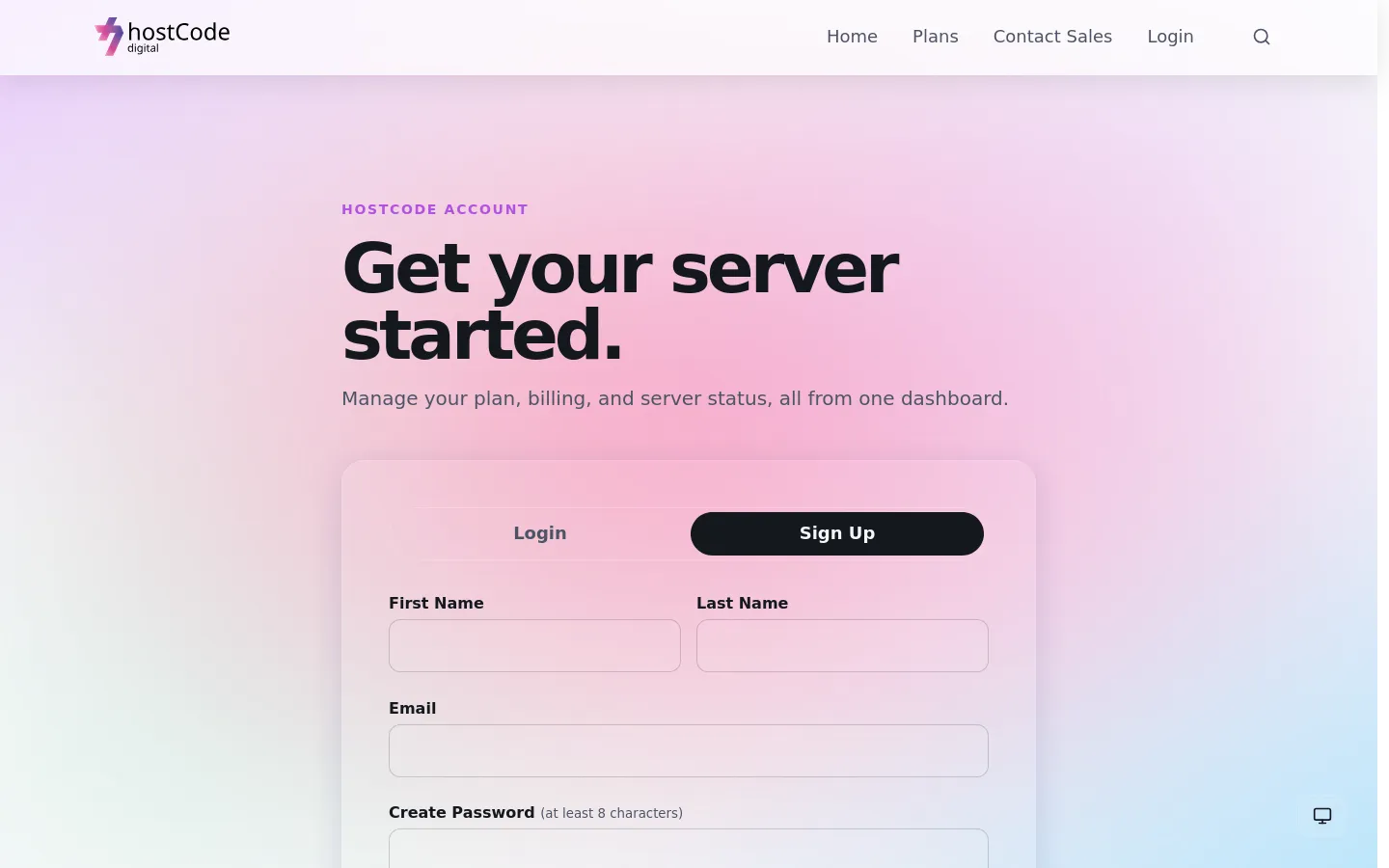
Create your account
Sign up with your name and email, and tell us a little about what you do. It takes a minute and there’s nothing to pay yet.
- Step 02
Confirm your email
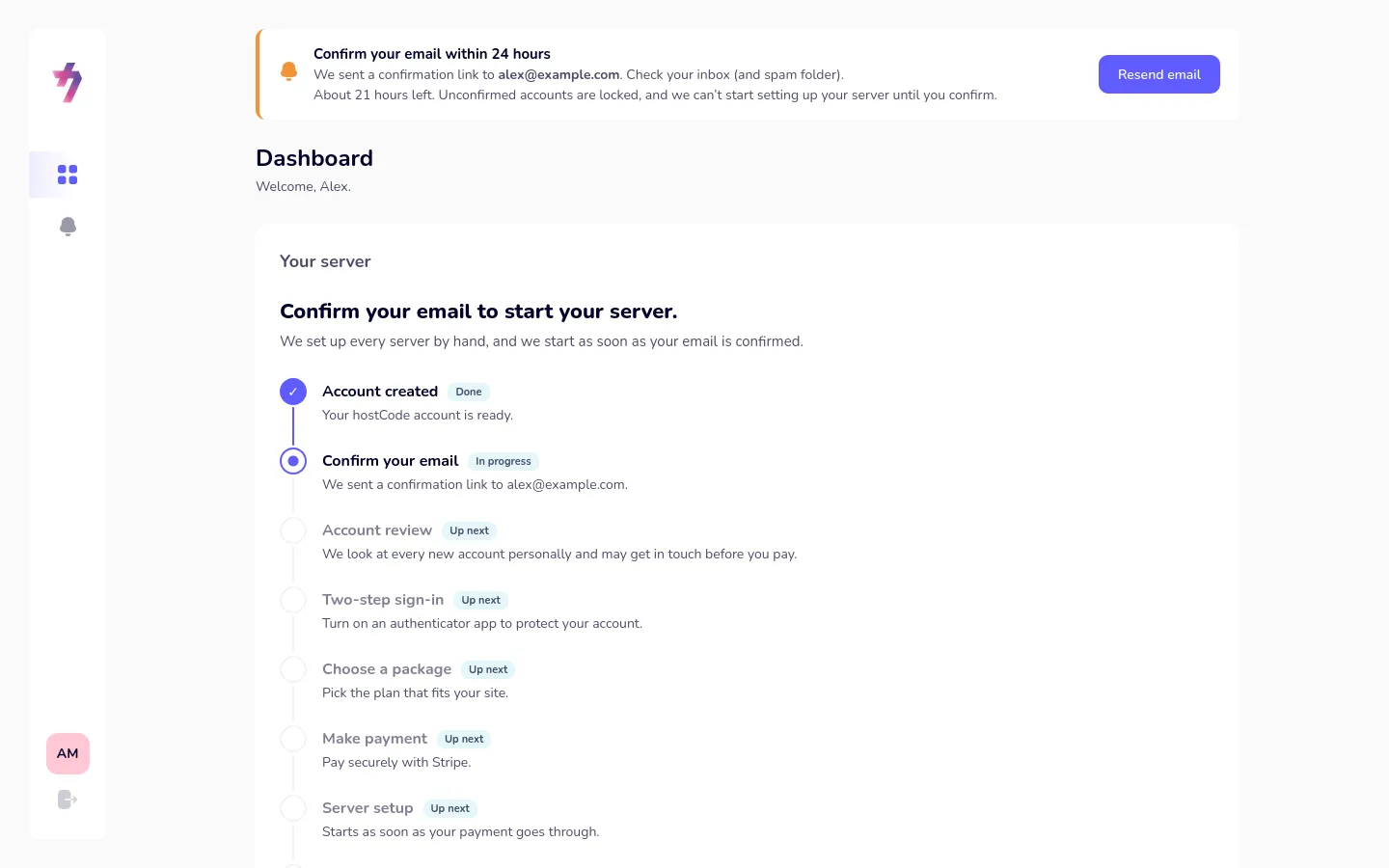
We email you a link. Click it within 24 hours to confirm it’s really you.
Your dashboard lists every step from here to a live server, so you always know what comes next.
- Step 03
We review your account
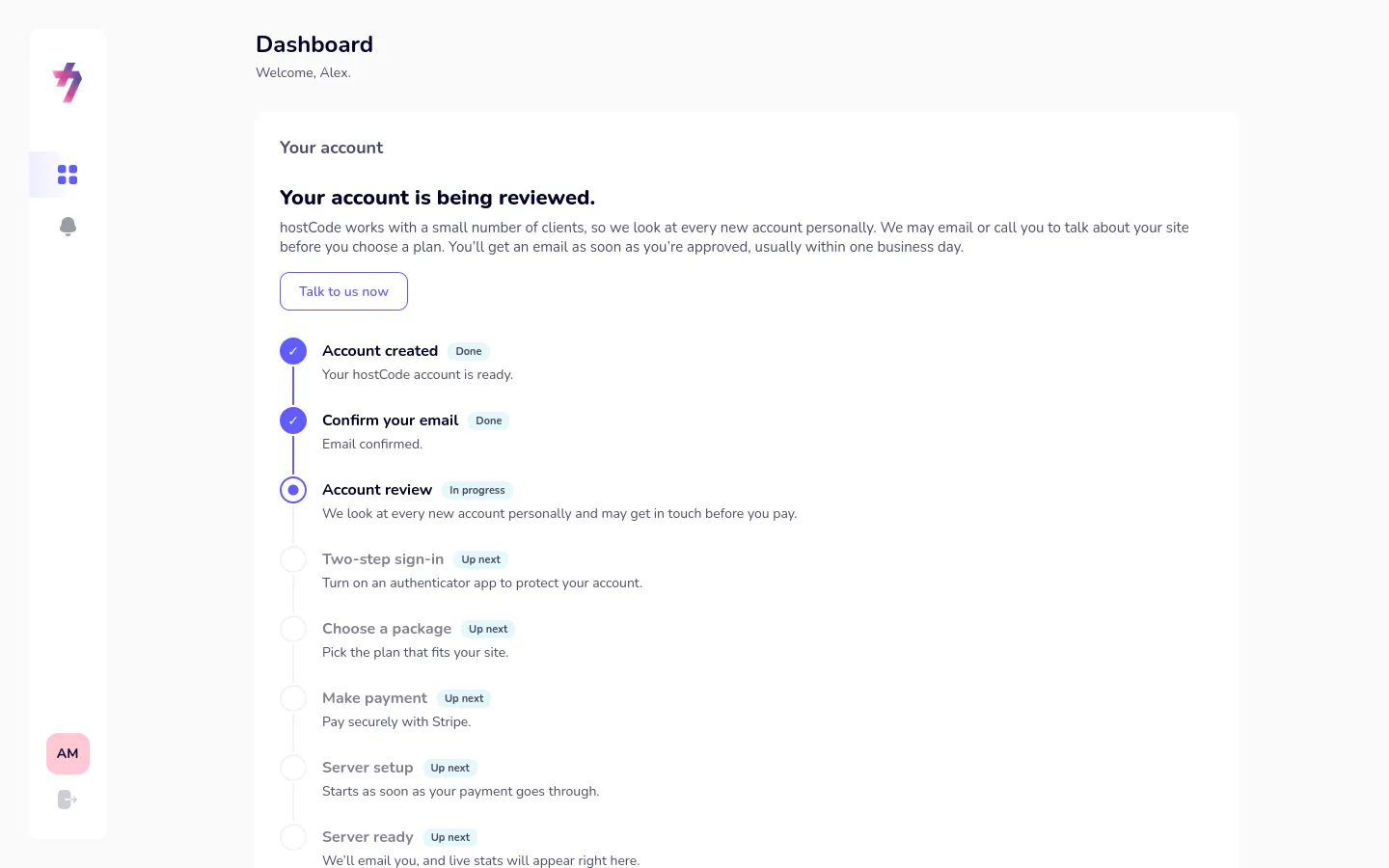
hostCode is a managed service for a small number of clients, so a real person looks at every new account.
We may email or call you to talk about your website and what you need before you pay anything. You’ll get an email as soon as you’re approved.
- Step 04
Turn on two-step sign-in
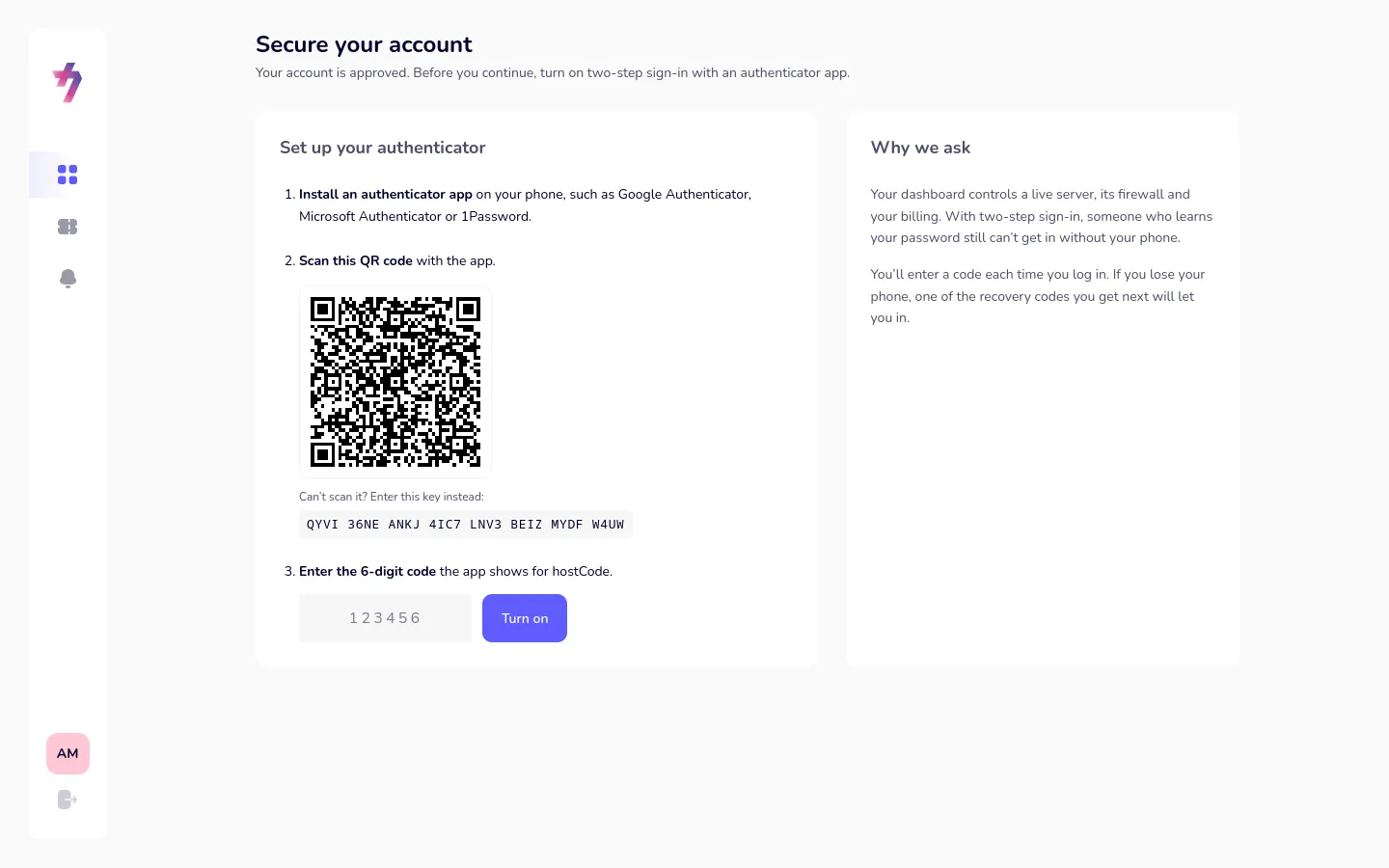
Once you’re approved, you protect your account with an authenticator app such as Google Authenticator: scan the QR code, enter the 6-digit code it shows, and save your recovery codes.
From then on you enter a code from your phone each time you log in, so your password alone is never enough to get in.
- Step 05
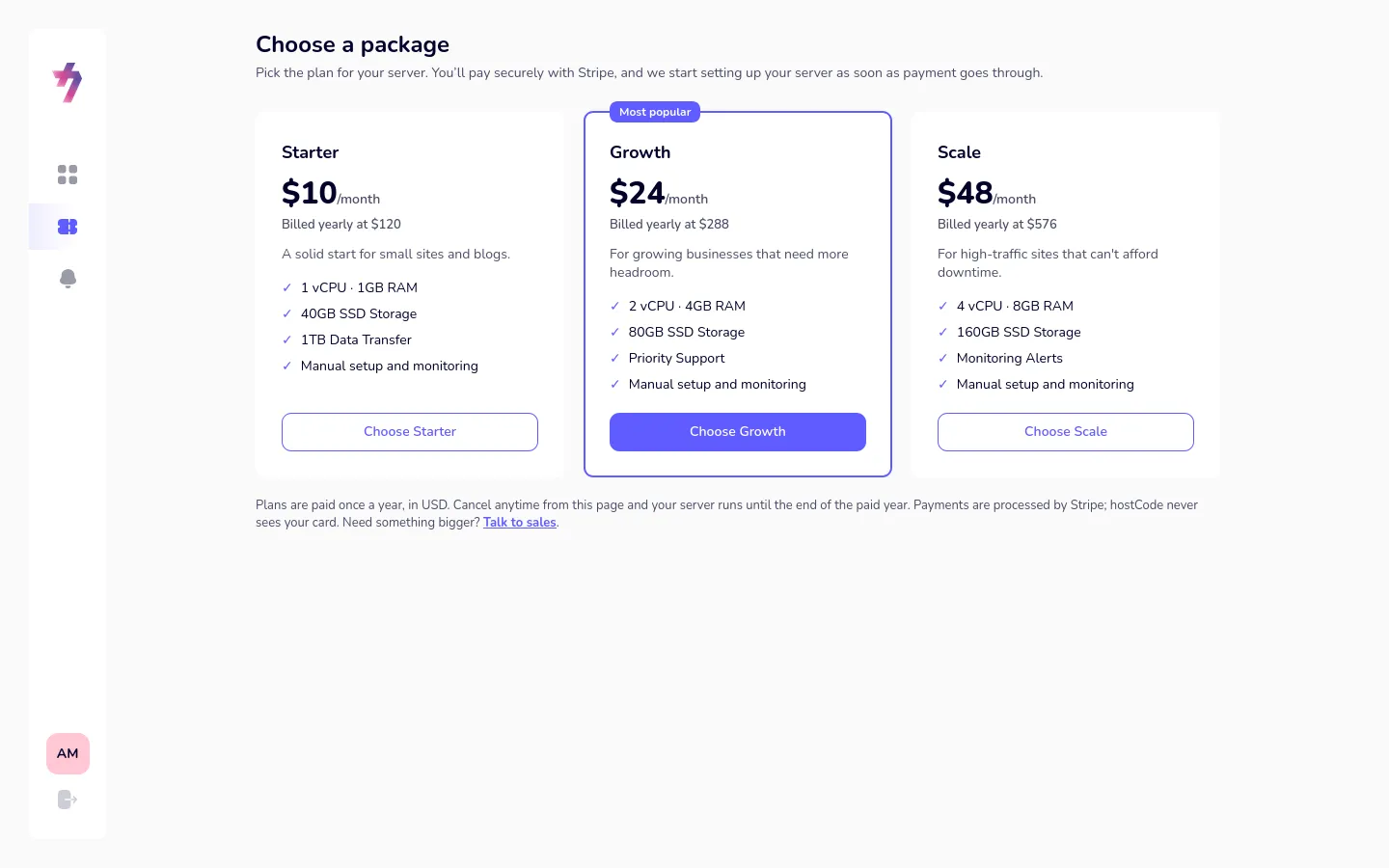
Choose your plan and pay
Pick Starter, Growth or Scale. You pay once a year through Stripe’s secure checkout, and hostCode never sees your card details.
- Step 06
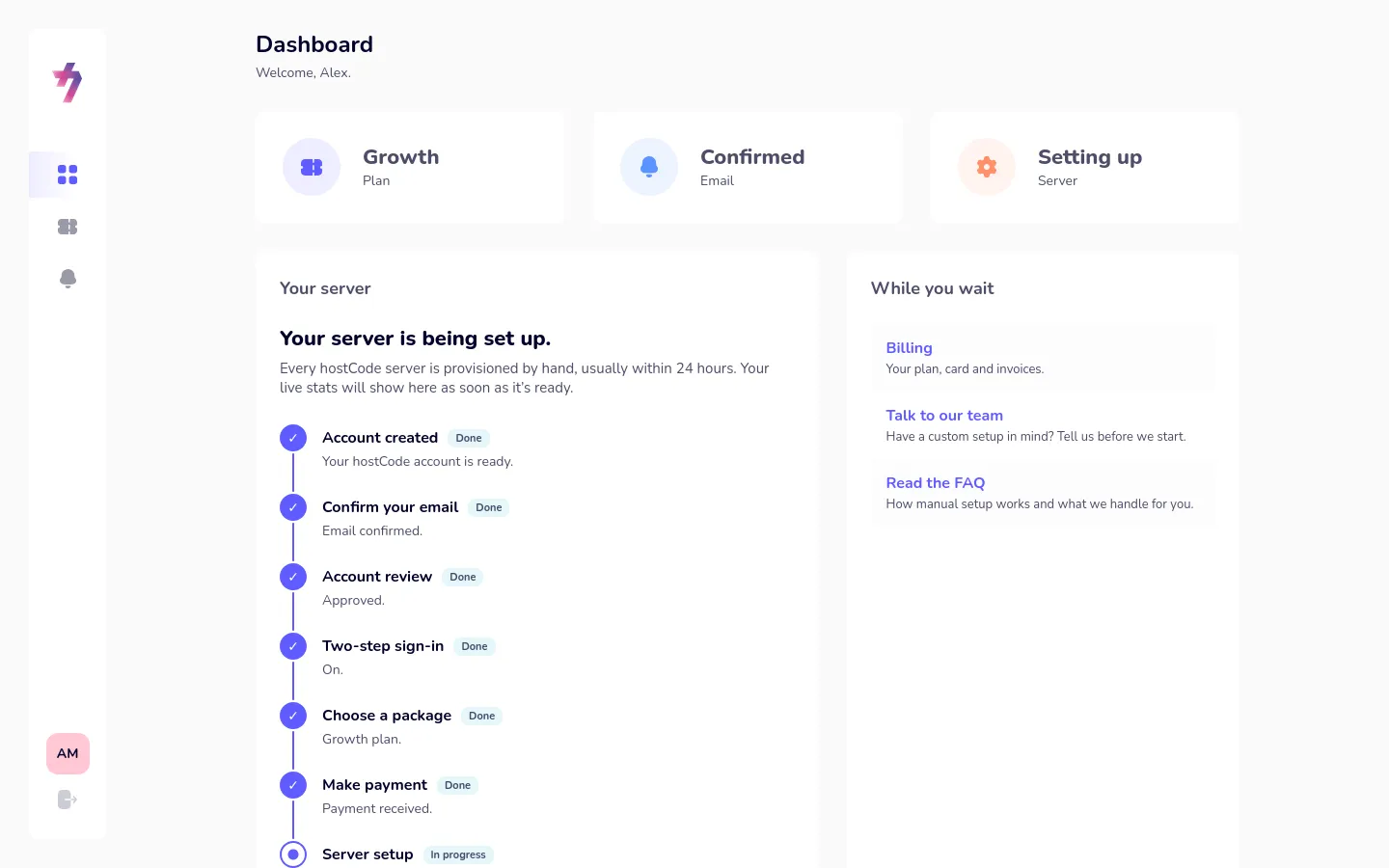
We set up your server
A member of our team creates your server on Amazon Web Services, installs what your website needs, sets up security and checks everything twice.
This usually takes up to 24 hours. We email you when it’s ready.
- Step 07
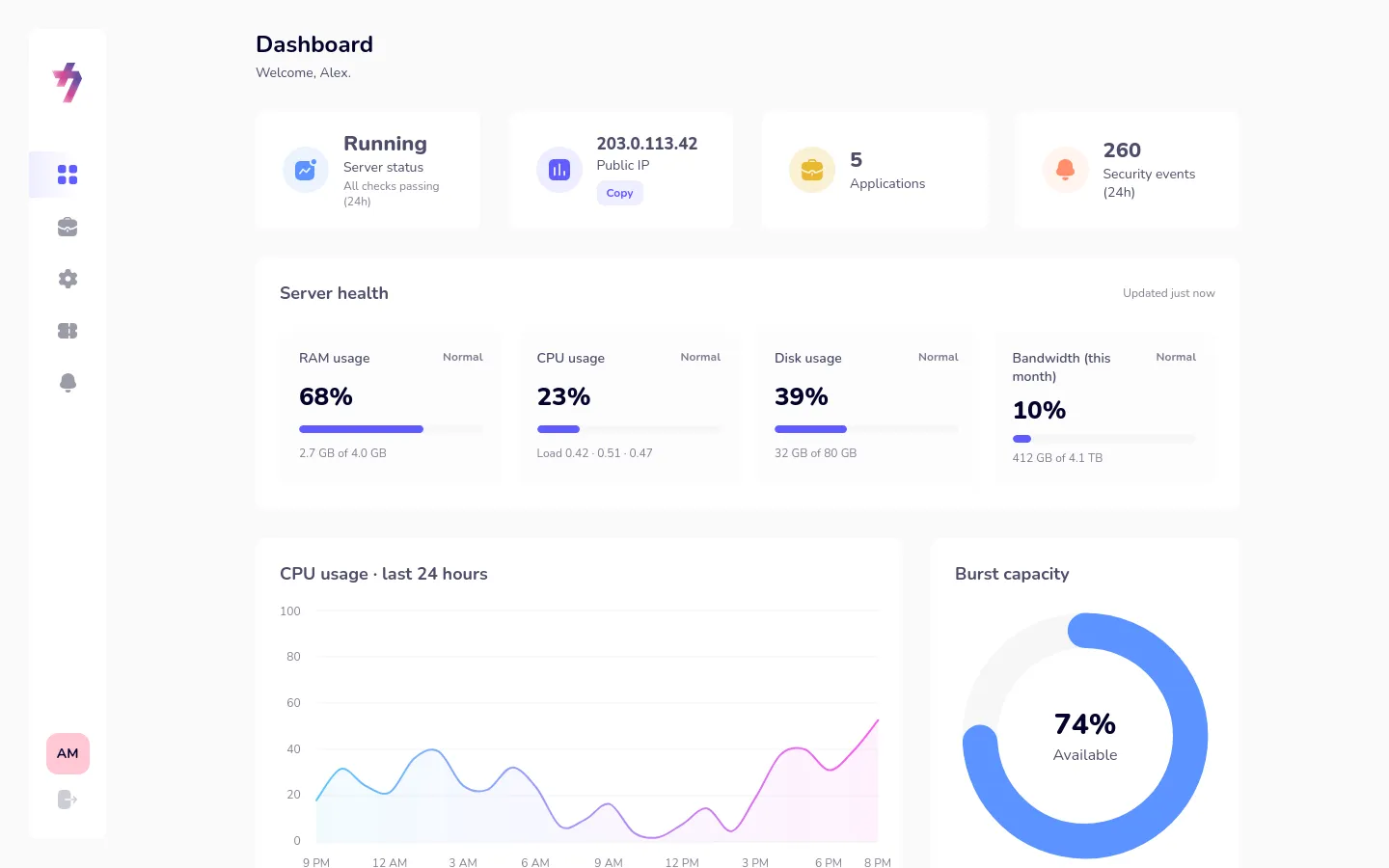
Your server is live
Your dashboard shows how your server is doing in plain terms: whether it’s running, how much memory, processing power, storage and bandwidth it’s using, and which services are on.
You don’t have to look. We watch it around the clock. But it’s there whenever you want to.
- Step 08
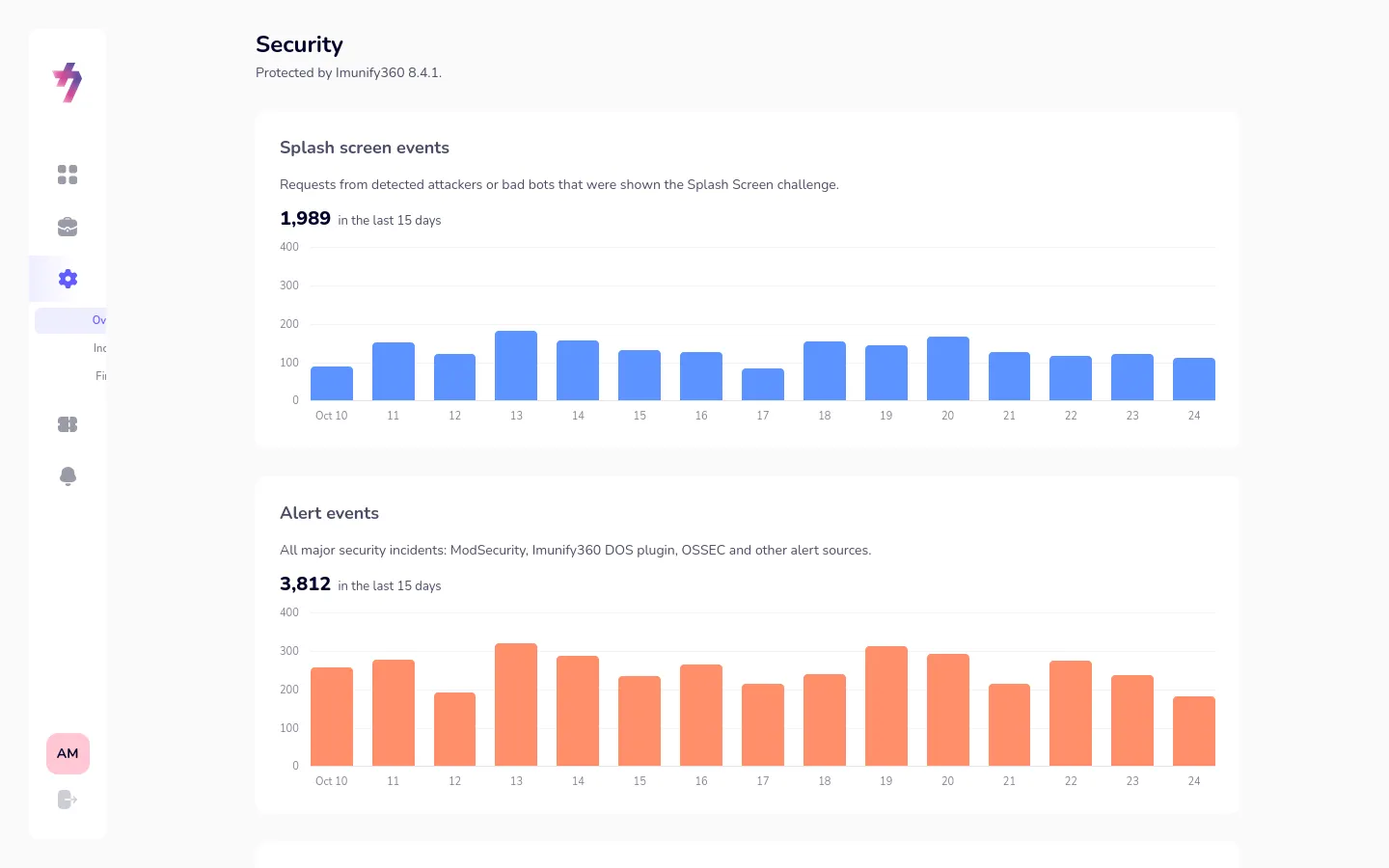
Security, handled
A firewall blocks attacks and bad bots automatically. You can see what was stopped over the last 15 days and, if you ever want to, block or allow an address yourself.
- Step 09
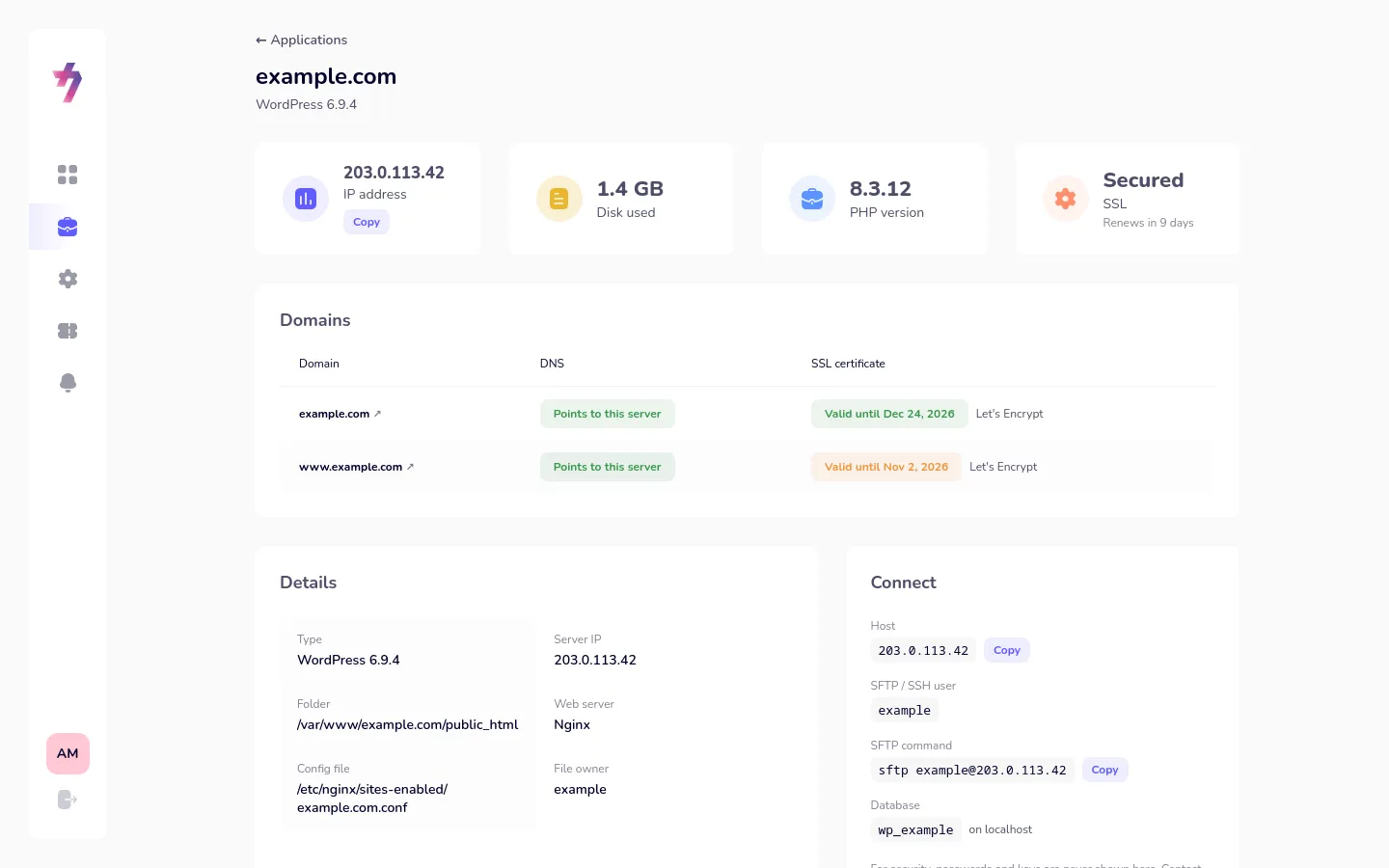
Every website at a glance
Each site on your server has its own page: its domains and SSL certificate, the software it runs, and the details for connecting to it.
- Step 10
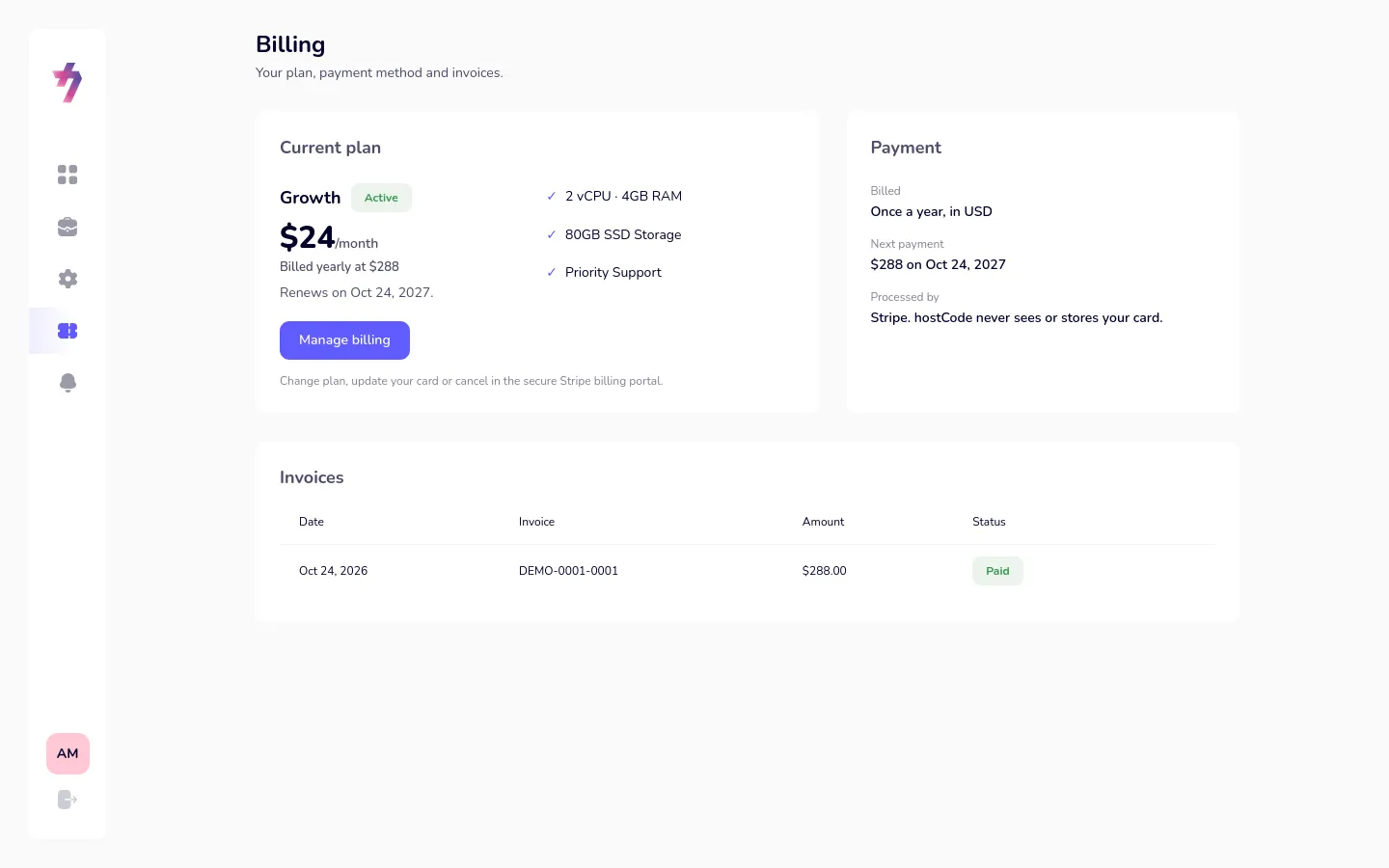
Billing in one place
Your plan, renewal date and invoices are always on the Billing page, where you can also update your card or change plan.
Ready when you are
Start with a conversation.
Create your account and we’ll be in touch, or talk to us first if you have questions.